🧠 How a Simple “localhost refused to connect” Error in Class 11 Taught Me About Operating Systems
A small browser error that became my first hands-on OS lesson.
💡 Introduction
It all started back in Class 11, when I was just beginning my journey into web development.
Like many beginners, I had just discovered HTML, CSS, and JavaScript — and all I wanted was to see my first webpage running in my browser.
I opened VS Code, installed the Live Server extension, wrote my first index.html, and clicked “Go Live.”
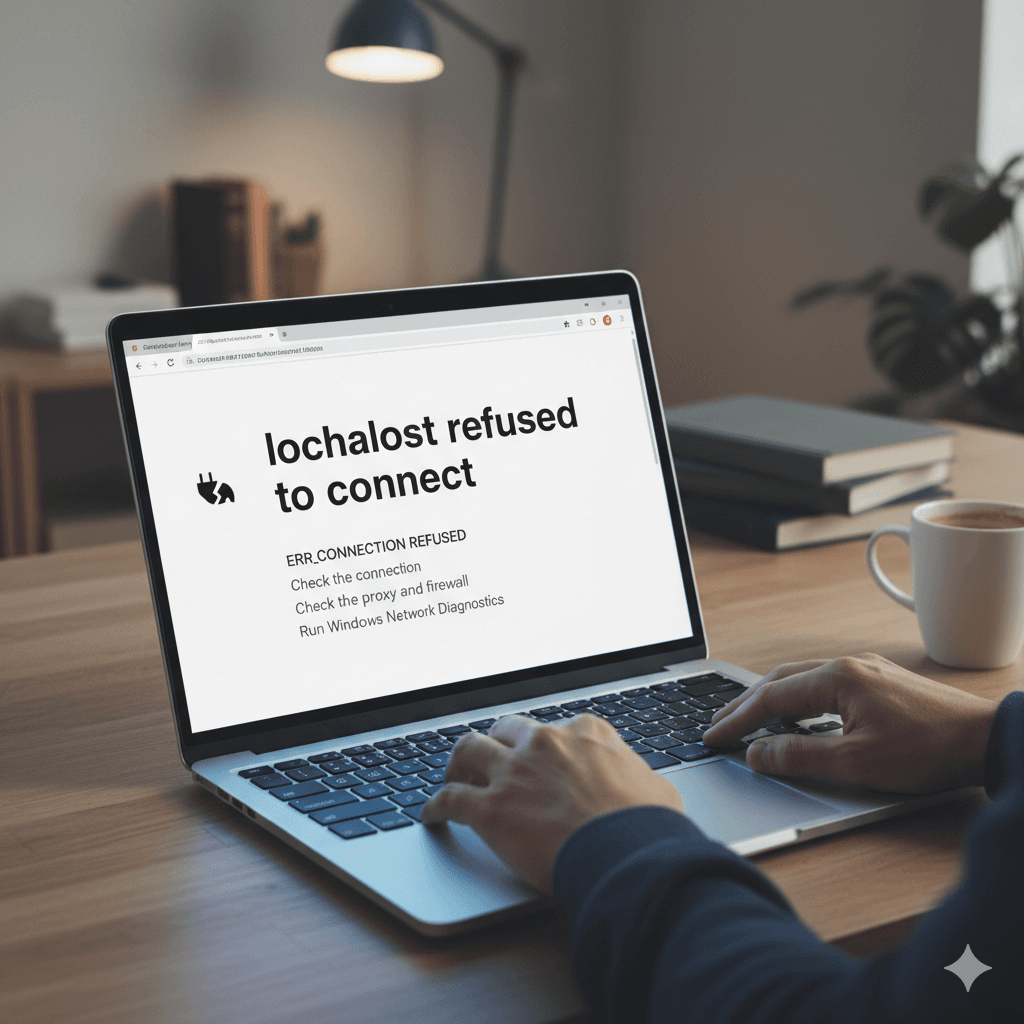
But instead of the glorious “Hello World” I expected, my browser greeted me with:
\> ❌ “localhost refused to connect”
That one line sent me down a rabbit hole that, at the time, I didn’t understand. But years later, sitting in my Operating Systems class, I finally realized — that day, I had accidentally learned how the OS, ports, and processes actually work.
---
🌐 What I Was Trying to Do
As a beginner, I thought running a website locally meant typing:
http://localhost
in my browser.
But Live Server doesn’t actually use port 80 (which browsers default to). It usually uses:
http://localhost:5500
or sometimes 8080.
By typing just localhost, I unknowingly told my browser:
\> “Connect to port 80 on my computer.”
But here’s the catch — port 80 was already in use.
---
⚠️ The Error and the Confusion
I had no idea what a port even was back then.
So when the browser said “refused to connect,” I assumed something was wrong with my code or with VS Code itself.
Like any beginner in panic mode, I did what most of us do:
Opened YouTube tutorials 🧑💻
Installed XAMPP and WAMP, hoping one of them would magically fix the issue
Ran random commands I didn’t understand
And finally, I came across this mysterious one:
netstat -ano | findstr :80
That command showed me something like this:
TCP 0.0.0.0:80 0.0.0.0:0 LISTENING 4
And that PID 4 caught my attention.
---
🔍 What I Discovered
After some more Googling, I found out that:
PID 4 belonged to the System process in Windows.
This meant port 80 was already reserved — by Windows itself!
In other words, Windows was saying:
\> “Sorry, that port is already taken. You can’t use it.”
That’s why Live Server or Apache couldn’t start on port 80.
At that time, I didn’t fully understand why or how. I just knew one thing:
\> If I used another port — like 8080 or 5500 — it worked.
The system was using port 80 for something else, and I had no idea what.
And that was my first real debugging win. ✅
---
⚙️ Fast Forward: My Operating Systems Class
A couple of years later, as a Computer Science undergraduate, I sat in my Operating Systems lecture — and everything suddenly made sense.
Here’s what I learned that connected all the dots:
---
🧩 1. What a Port Really Is
A port is like a numbered door on your computer that allows different programs to communicate with the network.
Port 80 → HTTP (web traffic)
Port 443 → HTTPS (secure web traffic)
Port 5500, 8080, etc. → Custom app ports
Only one process can “listen” on a port at a time. If the port is taken, others can’t use it.
---
⚙️ 2. What PID 4 Means
Every running program on your computer is a process, and each process has a PID (Process ID).
PID 4 in Windows represents the System process — part of the kernel that runs fundamental OS services.
The Windows HTTP Service (HTTP.sys) often uses port 80 to handle system-level web services or background network operations.
That’s why Apache or Live Server couldn’t take over port 80 — the kernel had already claimed it.
---
🔒 3. Privileged Ports
Ports below 1024 (like 80 and 443) are called privileged ports.
Operating systems restrict access to them to prevent unauthorized use by normal applications.
That’s why Live Server uses higher ports like 5500 — they’re unprivileged and free to use.
---
💻 4. How Live Server Actually Works
When you click “Go Live”, it spins up a small local HTTP server (using Node.js internally).
It picks a free port (usually 5500) and automatically opens your default browser with the correct URL.
If you instead type just http://localhost, your browser defaults to port 80 — and, you guessed it, nothing responds.
---
🧠 What I Learned from All This
At the time, I didn’t realize it, but that small frustration taught me so much about how computers and the web actually work:
How network ports enable communication
How processes and PIDs represent active programs
Why the OS kernel controls system-level resources
And why debugging is more about understanding systems than just following tutorials
That simple “localhost refused to connect” error turned out to be my first real lesson in operating systems — before I ever stepped into a CS classroom.
---
🌱 Final Thoughts
Looking back, I find it fascinating how something as small as a browser error can open the door to deep computer science concepts.
When you’re a beginner, you might not understand what’s happening under the hood — but every confusing moment teaches you something fundamental.
So if you’re struggling with something like localhost today, remember:
\> You’re not just debugging code — you’re learning how your computer actually works.
---
🧩 TL;DR Summary
I typed http://localhost → browser used port 80 → Windows System (PID 4) blocked it.
Later, I learned that:
Ports are like communication channels.
The System process (PID 4) handles kernel-level tasks.
Privileged ports (below 1024) need admin or system rights.
Live Server works on higher ports like 5500 to avoid conflicts.
That one error introduced me to real operating system concepts — before I even studied them.